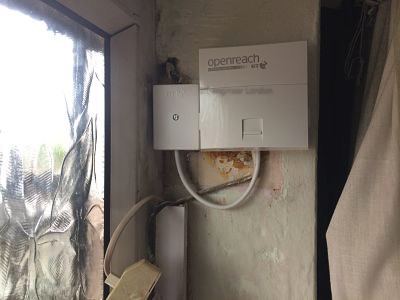
A "WiFi booster" isn't really the answer. What you need is an access point in the right place — sometimes two — wired back to the router with ethernet. The difference in real-world performance is night and day.
I get more calls about weak WiFi than almost anything else. It's the single most common complaint in modern London homes, and the single most misunderstood. Half the customers I speak to think they have a broadband problem. They don't. They have a wireless problem dressed up as one. The kit they've bought to fix it — the consumer extender from the supermarket, the mesh pucks from a tech-blog top-ten list — usually makes things look better and work worse. After fifteen years of doing this in London I've never met a single repeater that did what its packaging claimed it would.
The honest truth about consumer WiFi extenders
Here's what an "extender" or "repeater" actually does. It sits in a plug socket somewhere between your router and the room with no signal. It connects to your main router over WiFi at whatever signal strength reaches it, which is by definition not very good — because if the signal were strong there, you wouldn't need an extender. It then rebroadcasts that already-degraded link on the same radio. Each device on the network is now sharing airtime between the original router and the repeater, throughput collapses by at least half, and the latency goes through the roof. The little LED on the back of the repeater shows you a green tick, and the light on your laptop says you've got "70% signal" — but it's 70% of a connection that's already on its knees.
This is why I don't install them and don't recommend them. The fix for weak WiFi is not more wireless. The fix for weak WiFi is fewer hops, shorter distances, better placement, and proper kit fed by an ethernet cable that goes back to the router instead of trying to take a shortcut through your walls.
What actually works — and how I install it
The proper approach is a wireless site survey first, kit second. I walk the property with a meter that reads signal levels on both 2.4GHz and 5GHz, room by room, noting where the brick walls and the foil-backed plasterboard are, looking for the cleanest channel given what the neighbours are broadcasting. From that I can tell you whether one well-placed access point will sort it or whether you need two — and where the cabling needs to land so the install is clean and concealed.
Then I install proper wireless access points — Ubiquiti, Ruckus, occasionally Aruba for the bigger commercial jobs — wired back to your router with Cat5e or Cat6. All broadcasting the same SSID and password, all centrally managed, all on the right channels with the right transmit power so they don't fight each other. Devices hand off seamlessly between them as you walk through the property. No more "which network am I on?" pop-ups. No more dropping out of a video call as you walk from the kitchen to the home office.
What "seamless roaming" actually looks like
If you've ever walked through a hotel and noticed your phone stays on WiFi the whole way from the lobby to your room, that's seamless roaming with multiple access points sharing the same SSID. It's not magic — it's just done properly. A two-access-point install in a four-bedroom London townhouse can give you exactly the same experience. Your phone picks the strongest radio at each moment, switches between them quietly in the background, and never drops a packet of a Zoom call as you do.
Real WiFi jobs I've done across London
Last Tuesday in Highgate
Five-bedroom Victorian in N6, the kind of place with high ceilings, original cornicing, walls that look thin but contain a hundred and fifty years' worth of accumulated lath and horsehair plaster. The customer had bought a three-pack of mesh pucks at considerable expense and was furious that the back bedroom — the youngest child's room, naturally — still didn't have working internet. The mesh pucks were doing their best, but they were chaining wirelessly through two solid walls each time, and by the time the signal reached the back of the house there wasn't enough of it left to power a baby monitor reliably. I removed the mesh kit entirely, ran a Cat6 from the existing router cupboard up through an unused chimney void to the first-floor landing, fitted a single ceiling-mounted access point, and put a second one near the kitchen extension at the back. Same SSID across both. The back bedroom went from -78dBm and constant disconnects to -52dBm and 400+ megs on a phone. Half a day's work and a properly working house.
A flat in Shoreditch with too many neighbours
Top-floor flat in a converted warehouse off Curtain Road, EC2A. Single-room WiFi job in principle, but the building had at least twenty other flats and most of them were broadcasting on overlapping channels in 2.4GHz. The customer's router was on automatic channel selection and kept flipping between the same crowded frequencies as everyone else. A site scan with my analyser showed 5GHz was almost empty by comparison, so the answer wasn't more kit — it was a single ceiling-mounted access point properly fixed to a clean 5GHz channel, with the old router's WiFi turned off completely. Total upgrade time: less than two hours. The customer described it as "like the internet had been on a diet and just stopped."
A garden office in Twickenham
This one comes up constantly in west and south-west London — somebody puts up a garden office during the post-pandemic working-from-home rush, plugs in a router-extender pair, and then can't understand why their video calls keep freezing. WiFi simply does not pass through a brick wall, a metre of London garden, and another set of timber-clad walls reliably. The answer is a buried armoured ethernet from the house out to the office, terminated at each end on weatherproof boxes, with a small access point inside the office that broadcasts the same SSID as the house. The customer in Twickenham had been running on a TP-Link extender on a coat-stand for two years. After the buried run went in, her gigabit FTTP service reached the garden office at the full whack and the dropouts vanished.
Where I've installed WiFi properly
- Townhouses across NW1 and N6 — Primrose Hill, Highgate, Hampstead Garden Suburb
- Converted warehouses and live-work units in Shoreditch and Hackney Wick
- Family homes with loft conversions and side returns in N16, E5 and SW11
- Mansion blocks in W1, W2 and W8 where listed status makes cabling a real puzzle
- Small businesses — dental practices, accountants' offices, design studios, coffee shops
- Schools, GP surgeries, churches and community halls
- Restaurants and shops needing reliable guest WiFi separated from a private till network
- Garden offices, summerhouses, outbuildings and detached annexes
- Larger country properties on the edge of Greater London including, yes, one small vineyard
The questions I get asked most
Will mesh from a high-street brand work in my house?
Sometimes. In a small flat with thin internal walls, three identical mesh nodes can do an adequate job — provided you wire at least one of them back to the router by ethernet (most mesh kit supports this and most people don't bother). In a London townhouse with thick walls or a long terrace, mesh that talks to itself wirelessly will struggle exactly where you need it most: the far end of the house. Wired access points outperform wireless mesh in almost every scenario I've measured.
Can you use my existing wiring?
Often yes. Many properties already have unused telephone extension cabling I can re-purpose with a re-termination, or coaxial runs I can replace cleanly. Where there's no existing route, I can usually find a discreet path through ceiling voids, service risers, or behind skirting, and chase short stretches into plaster where I have to. The aim is always a finished install that looks like it was always there — not a flat with a snake of white cable taped to the cornicing.
How many access points do I need?
For a typical two-bedroom London flat, usually one well-placed unit. For a three- or four-bedroom house, two. For larger homes, garden offices or commercial spaces, three or more — but I'd rather under-install and add later than oversell. The survey tells me which it is. I'll give you a frank answer over the phone after I've heard the layout and a clear quote before I order any kit.
How WiFi actually works — the bit nobody explains
WiFi isn't broadband. WiFi is the wireless signal that lets your devices reach the broadband router; the broadband itself is the bit of wire (or fibre) running into your property from the street. If the broadband is fine but the WiFi is weak, your speed tests look slow when you stand in the bedroom — but it's the wireless link that's slow, not your actual line. Two different problems, two different fixes.
The realistic speed of WiFi from a router depends on how many devices are connected at the same time, the distance from the router, the number and density of walls in between, and how many of your neighbours are broadcasting on the same channel. There are physical limits no consumer extender can overcome — a brick wall is a brick wall regardless of what colour LED is on the front of the kit. The trick is to put a clean, strong access point on the right side of each obstacle, fed back to the router by a cable that doesn't care about radio at all.
Modern access points run 802.11ax (WiFi 6) or the newer 802.11be (WiFi 7), with multiple radios, MU-MIMO, OFDMA and beamforming — which between them mean far more devices can be served at the same time, with less interference and lower latency, than was possible even five years ago. The technology is excellent now. The hard part is making sure it's installed in the right place, with the right cabling behind it, and not bolted to a wall socket on the wrong side of a chimney breast.
What you get with a proper install
- A wireless site survey written up with real signal numbers per room.
- A plan showing exactly where each access point will go and how the cabling will run.
- Professional access points supplied at trade pricing, not consumer markup.
- Cat5e or Cat6 cabling installed cleanly, often hidden completely.
- Configuration of a single seamless network so devices roam between access points.
- Separate guest network if needed, with its own password and bandwidth limit.
- A printout of the final signal map so you can see the difference.
- A working number to ring if anything's not right afterwards.
What to try before ringing me
Before booking a survey it's worth a couple of quick experiments. First, move the router temporarily into the most central position you can — middle of the property, ideally high up and out in the open rather than buried in a cupboard or behind a TV. If coverage improves with the router in that position, the long-term fix is to wire a cable to that location and put a proper access point there. If coverage doesn't improve much, the problem is more about the construction of the property than the placement of any single radio, and you need additional access points rather than just moving the existing one.
Second, check what channels your router is using. Most routers default to "auto" on 2.4GHz, which in dense parts of London often parks them on the same crowded channel as every neighbour. Switching to 5GHz, where the channels are wider and less crowded, fixes a meaningful number of "WiFi is slow" complaints by itself. Most modern phones and laptops will prefer 5GHz automatically if the signal is strong enough — and if it isn't, that's another sign you need an access point closer to where you actually use it.
Ring 020 3633 1131. Advice freely given.